October 31, 2026 · 3 min read
How to Print Coloring Pages at Home: A4 vs US Letter
Learn how to print coloring pages at home: choose A4 or US Letter, check scaling and margins, and print one test page before the full book.
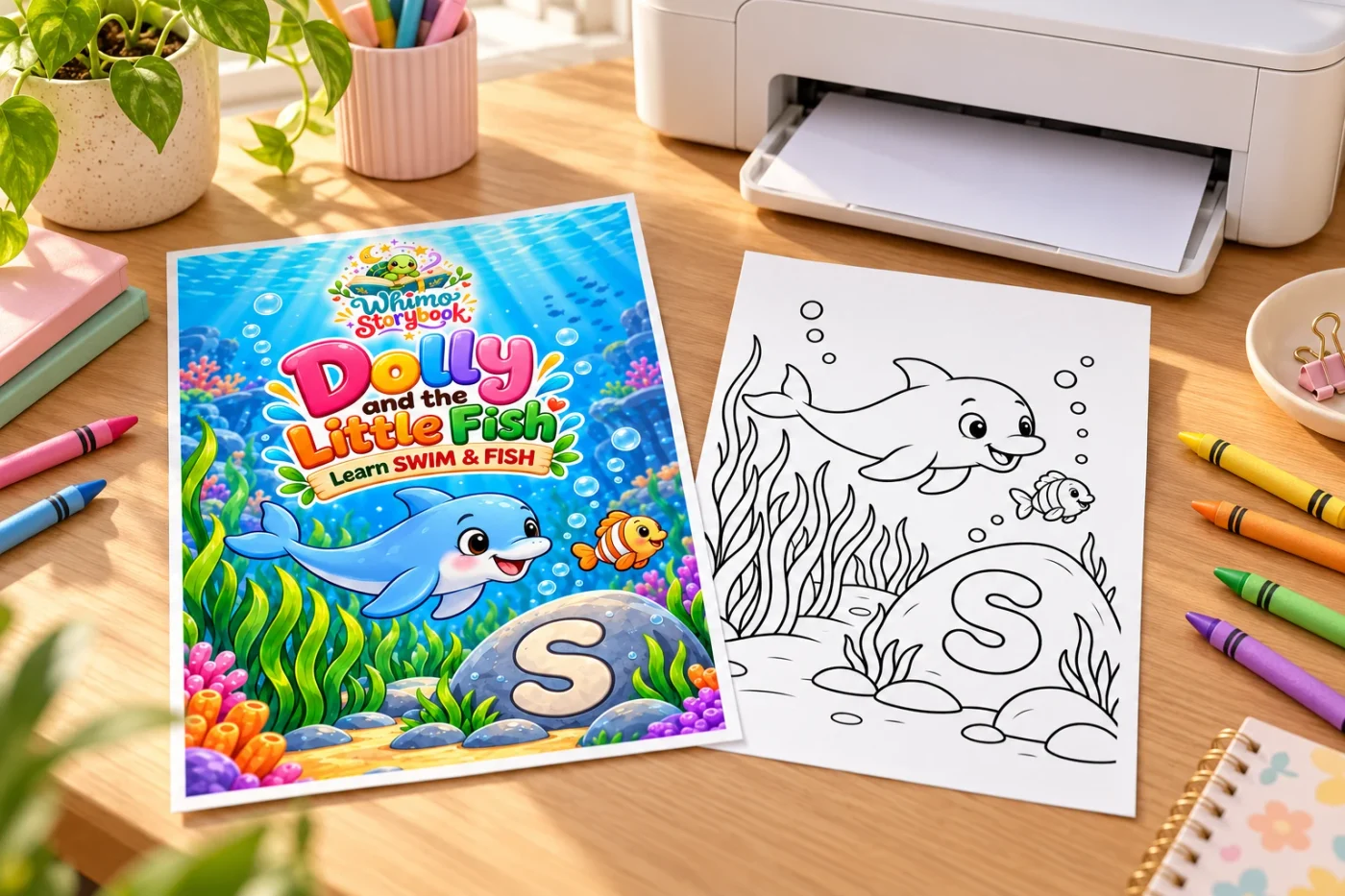
You have downloaded a coloring book, the crayons are ready, and the printer asks you to choose a paper size. Should you select A4 or US Letter? And what does “Fit” actually do?
This guide explains how to print coloring pages with a simple routine: match the file to your paper, check the preview, and test one page before printing the rest.
A4 and US Letter: what is the difference?
Both are common home-printing formats, but their proportions are slightly different.
| Paper size | Dimensions | Commonly used in |
|---|---|---|
| A4 | 210 × 297 mm, approximately 8.27 × 11.69 inches | UK, Europe, and many other regions |
| US Letter | 8.5 × 11 inches, or 215.9 × 279.4 mm | United States and Canada |
A4 is taller and slightly narrower. US Letter is shorter and slightly wider. Check the label on your paper packaging rather than relying only on where you live.
WHIMO’s product pages, including Dolly’s Underwater Adventure and Luno and the New Classroom, list both A4 and US Letter formats.
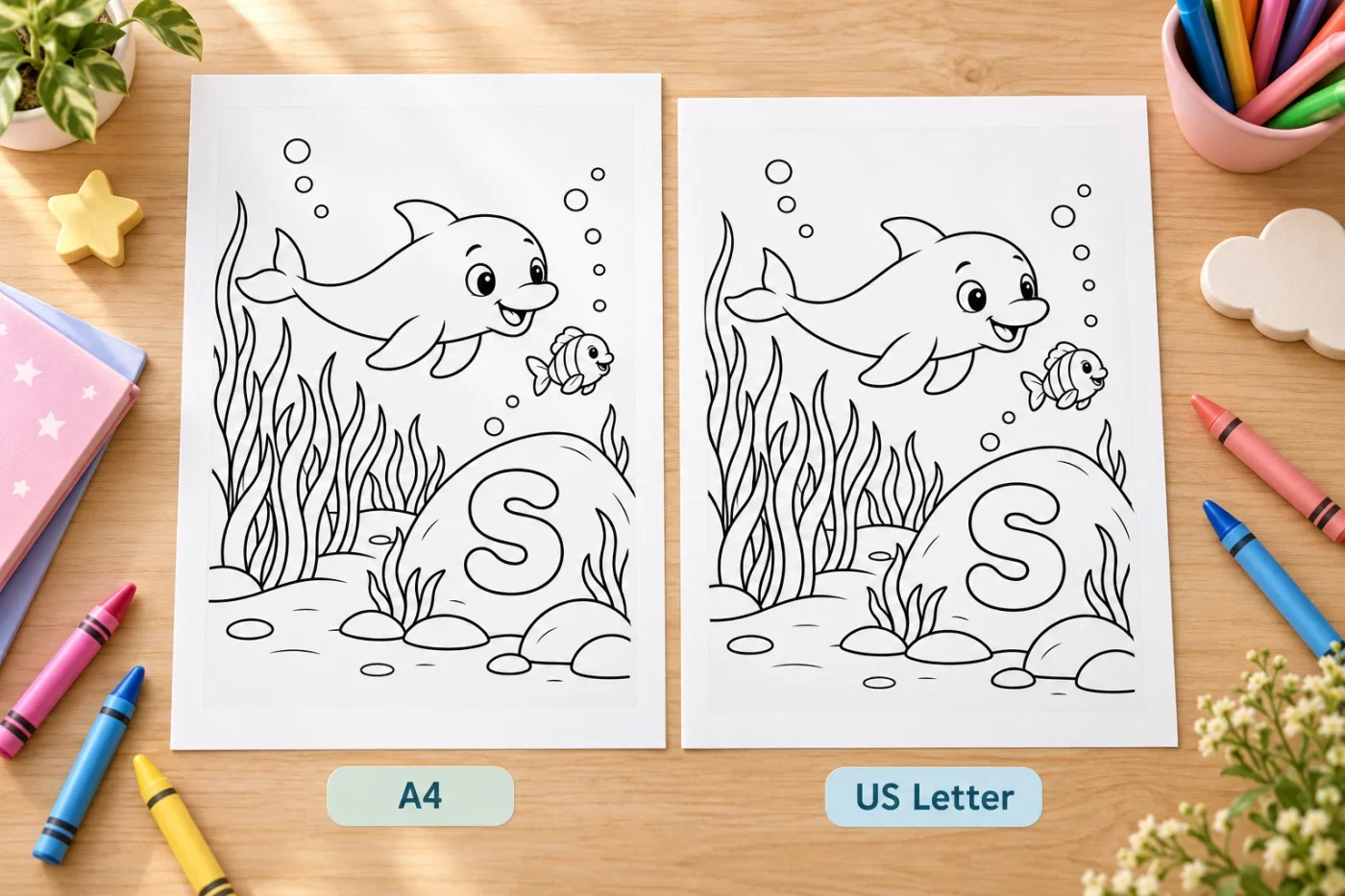
Step 1: download the matching PDF
Choose the A4 file for A4 paper or the US Letter file for Letter paper. Save the PDF, then open it in a PDF reader. Printing the original PDF is preferable to printing a screenshot or a product preview image.
The colorful marketing images on a product page show what is inside; they are not the print-ready coloring files.
Step 2: check the printer settings
Load the paper and select the same size in the print dialog. Check the printer, portrait or landscape orientation, and the page range. Menu names vary between printers and PDF readers.
For a first test, choose one coloring page rather than the entire document. Select single-sided printing if you want a separate sheet for each picture.
Step 3: choose scaling carefully
Actual Size, often shown as 100%, keeps the PDF at its intended dimensions. Use it when the file matches the paper and the preview shows the full artwork inside your printer’s printable area.
Fit reduces or enlarges the page to fit the available printing area. It can help when a preview shows clipped edges, although it may make the artwork slightly smaller.
Most home printers leave an unprinted margin. Borderless printing is not necessary for ordinary coloring pages, and some borderless modes enlarge or crop the image. Always trust the preview and your test print over a setting’s name.
Step 4: choose paper and print quality
Ordinary printer paper is a practical starting point for crayons and colored pencils. For markers, test for bleed-through and place a protective sheet underneath. Use heavier paper only if your printer supports it; check its paper-weight limits first.
Black-and-white or grayscale settings usually suit line-art pages. Start with standard quality. If outlines look too faint in draft mode, return to normal quality before increasing other settings.
Step 5: inspect one test page
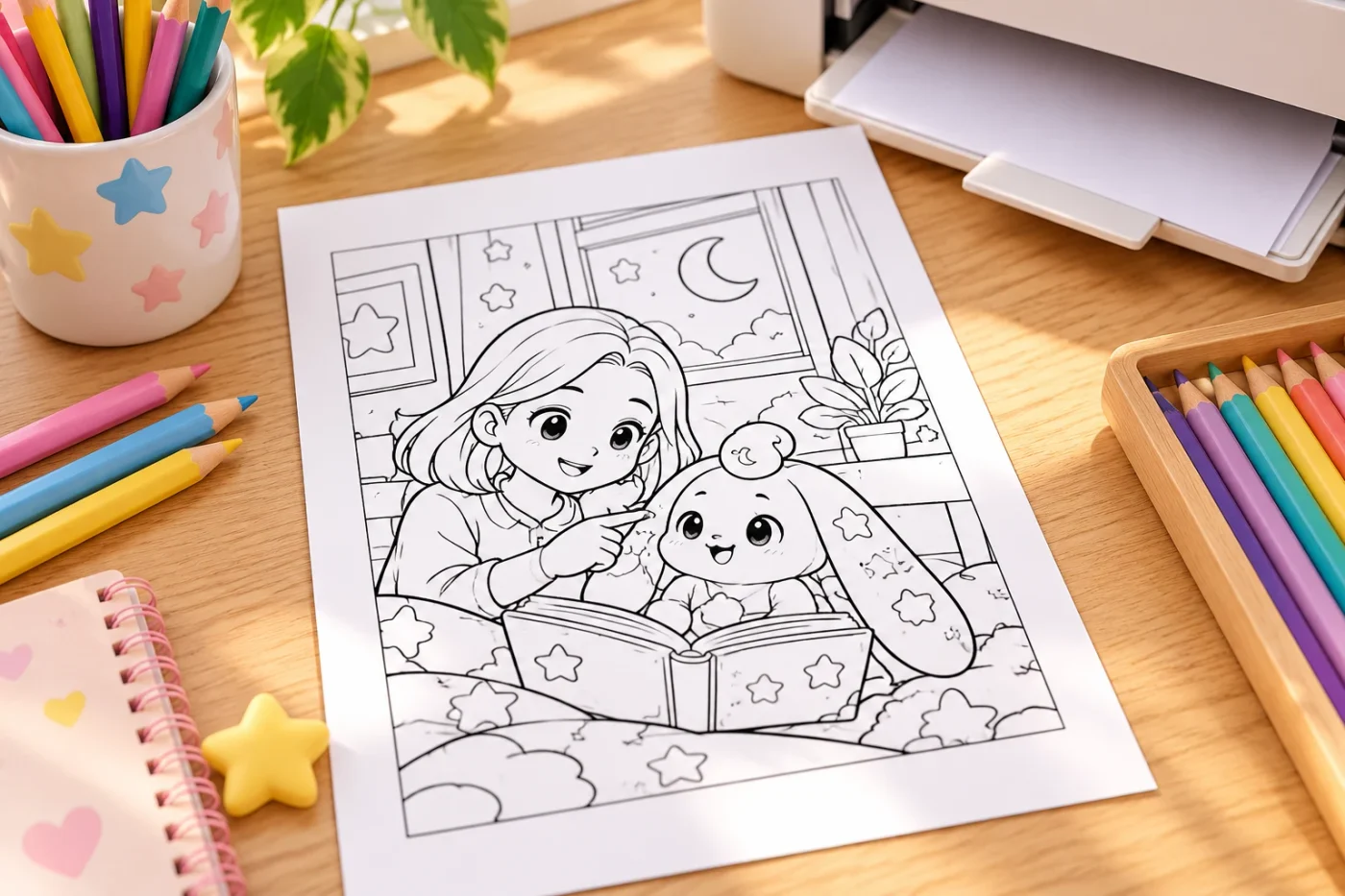
Check that the whole illustration is visible, the outlines are clear, and no unwanted browser headers appear. If an edge is missing, confirm the paper size and try Fit. If the print is blurry, make sure you opened the downloaded PDF rather than a small preview image.
Once the test looks right, print the remaining pages. Keep the original files in a named folder so the next coloring session starts with less searching.
For more help, visit the WHIMO Print at Home Guide. A little setup now makes it easier to get back to the enjoyable part: choosing the first color.
Ready for some screen-free fun?
Browse our printables